
Getting Started
Dropping your first pin
We've tried to make it as easy as possible for you to map the world around you. If for whatever reason it doesn't make sense or could work better, please let us know.
- Pins: Mark a specific location (e.g. "Starbucks" or "Perfect Beach")
- Tags: Use these to group your pins together (e.g. "Coffee" or "Beaches")
Read more about pins here.
- On the map view hold your finger down
- Tap the '+' create button in the main menu and select 'Drop a pin'
- Search for a location and tap the plus next to the search result
- Take a photo (with location sharing on) and upload the photo
- Drop multiple pins by uploading multiple photos with location data
- Import your existing data
Quick drop pins
You can then do a quick Pin Drop with minimal information or get stuck in and do a full pin edit. The information you can add to a pin varies depending on your subscription level.
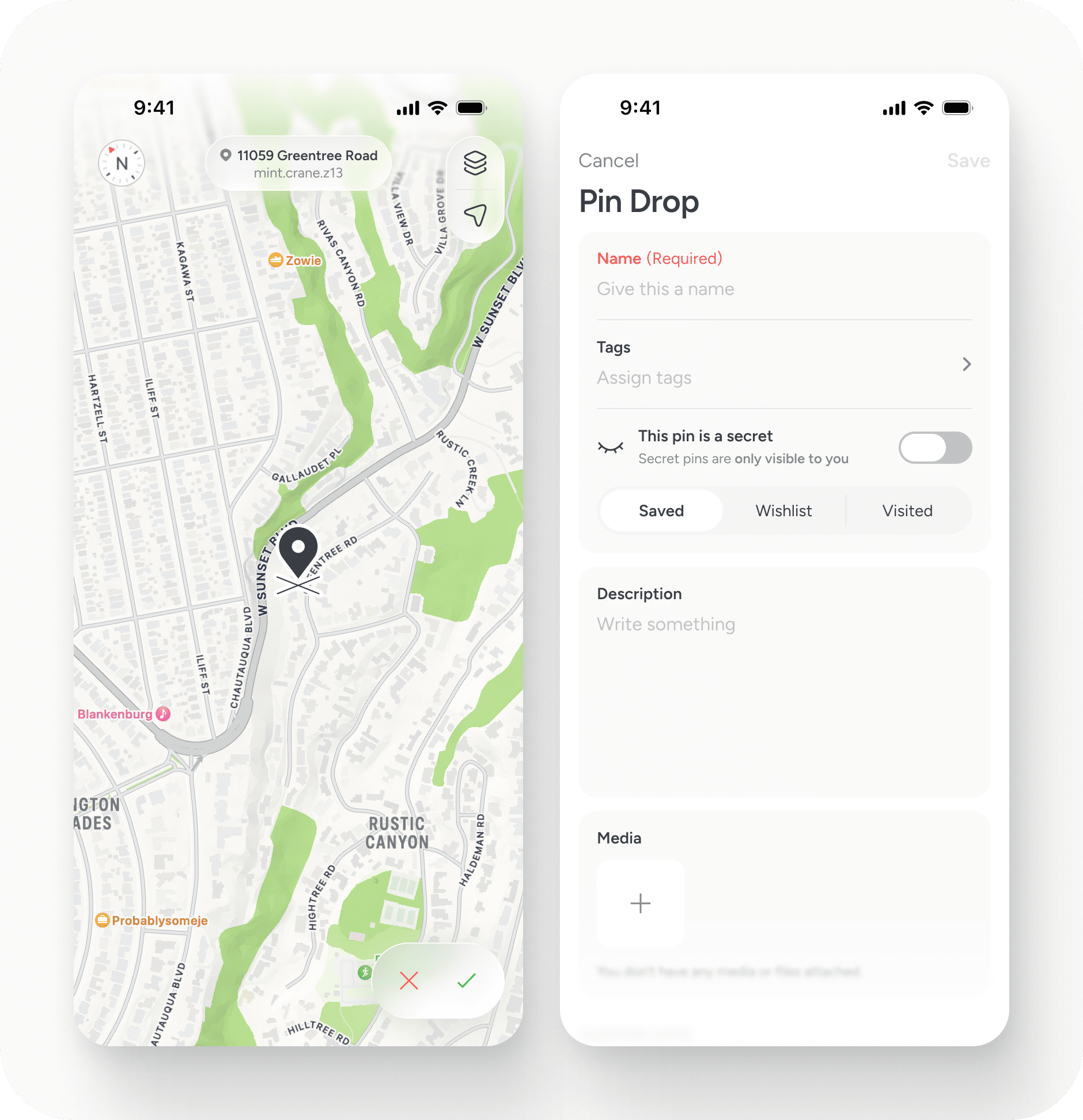
Placing a pin
- Find somewhere: Search for a business name, town/city, address, zip code, lat/long, what3words etc to find a location.
- Place pin: When you see the drop pin icon (dark pin with an X at it's base), drag the map to perfectly place your pin.
- Save location: Tap the tick button at the bottom of the screen and you'll be able to add the data you want. The only required bit of data when dropping a pin is to add a name.
Add data to your pins
- Name (required)
- Tags
- Description
- Media (photos and videos)
- Phone, email, website and address
- Pin specific settings
- Shared lists
Data on paid plans:
- Summaries
- Custom data
- Visit history
- Notes
- Attachments
- Tasks
- Pipelines
Organise with tags
Organise your content using tags. Tags are a great way to group your pins together to make them easy to browse, share and just keep everything organised and discoverable.
Customising tags
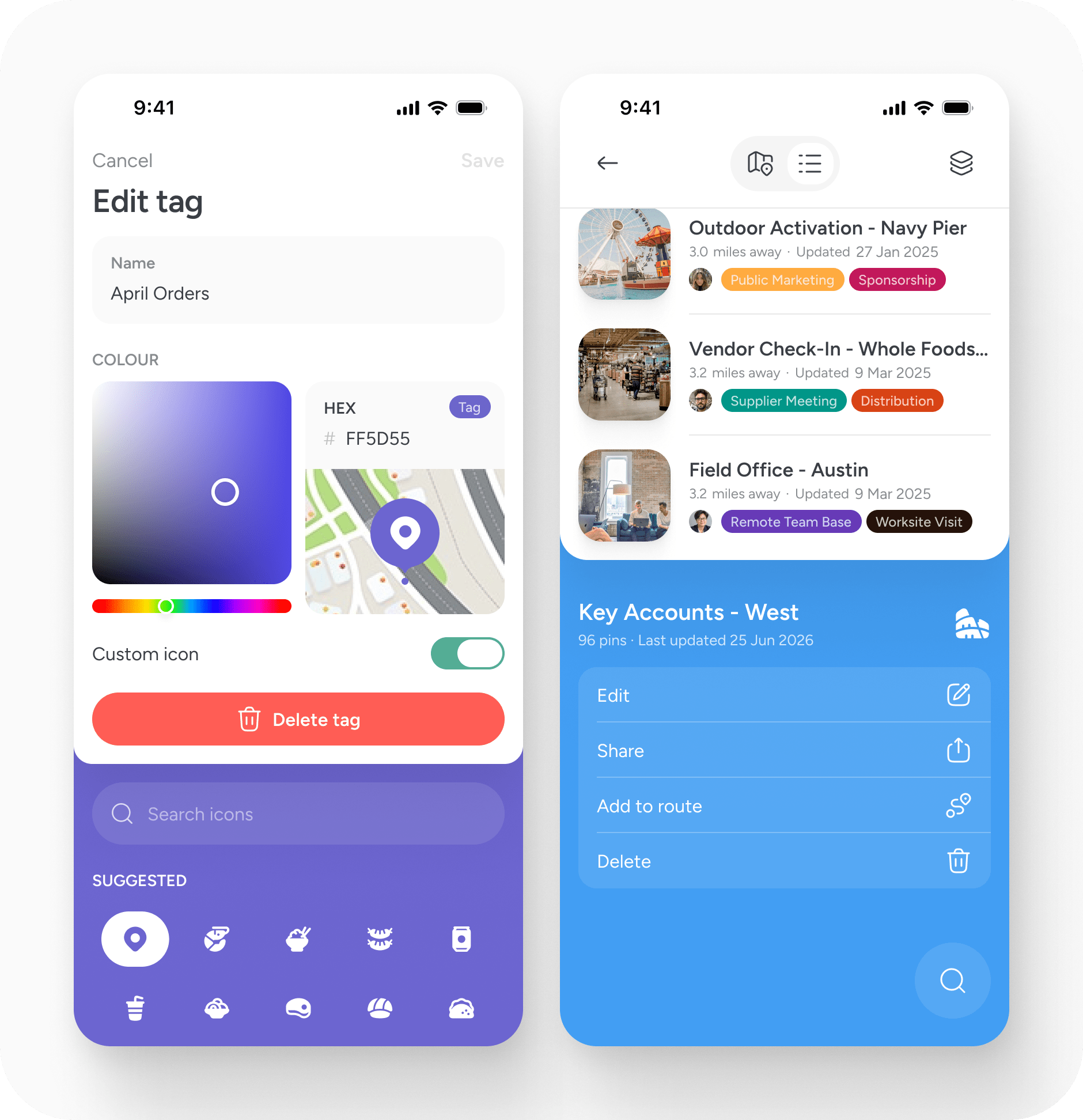
When you create a tag you can assign it a:
- Name
- Colour
- Custom icon (if you want to change the way the pins that use it are displayed on the map)
To change the colour of your tag you can tap and drag the colour wheel or enter a hex number value. Once you're happy with what you've chosen, just select save.
Adding icons
Once you've added the name of your tag you will see a new row appears between the name and colour. This will suggest some icons based on what you've called your tag. If none of those are what you'd like, tap the expand icon on the far right of the row and you'll be able to search through all the available icons.
Getting started with Teams
Creating your workspace
Setting up your team on Pin Drop can vary from one team to another, but we’re here to guide you through the process smoothly. The main task is deciding who you want to invite to join your team, everything else will follow seamlessly. No need to worry, we’re here to help if you need us.
Inviting people
Invite colleagues to your team. Each person will have to pay a seat price to be a member.
Request a demo
Let us walk you through how to shape Pin Drop to match your requirements. During the call we'll give you a 1:1 walkthrough of the product, chat about the problems you're facing and answer any questions you might have. Request a demo.


